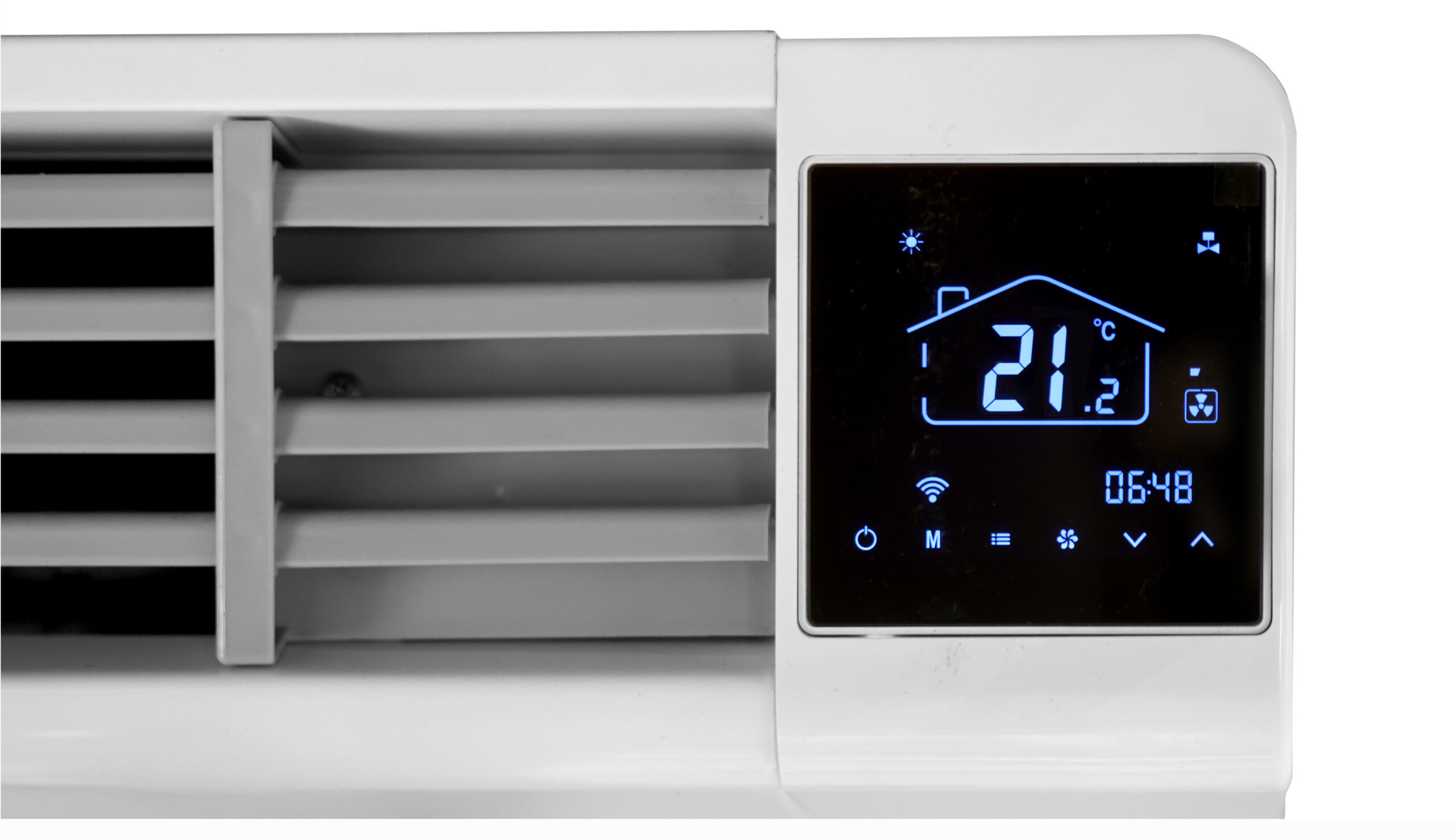
You can control the Yesncer All Season radiator in several ways: via the display on the radiator, the remote control and the SmartLife app.
We recommend the “automatic” setting for optimal comfort and low noise levels.
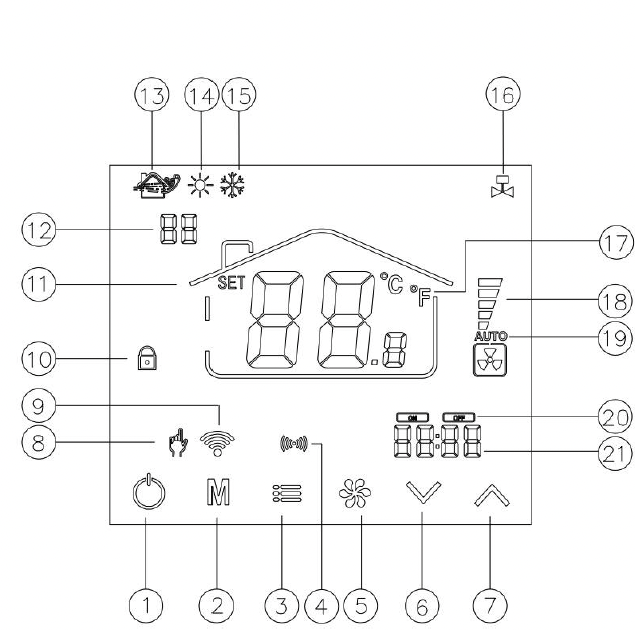
6Lower temperature
• Steady icon = connected
• Flashing icon = no connection
10Child lock (can be unlocked via the SmartLife app)
Heat pump supplies hot water → Radiator heats
Heat pump supplies cold water → radiator cools
All radiators and the heat pump must be set to the same mode (all heating or all cooling).
Incorrect example: If the heat pump is supplying hot water and the radiator is set to cool (e.g., 17°C), the radiator will continue to release heat → the room will actually get warmerr.
We recommend always setting the fan to automatic.
The radiator will then adjust the speed automatically based on the temperature difference.
To adjust the timer: follow the same steps again.
To adjust the timer, follow the same procedure.
The timer can only be turned off by resetting it:
Tot het display knippert.
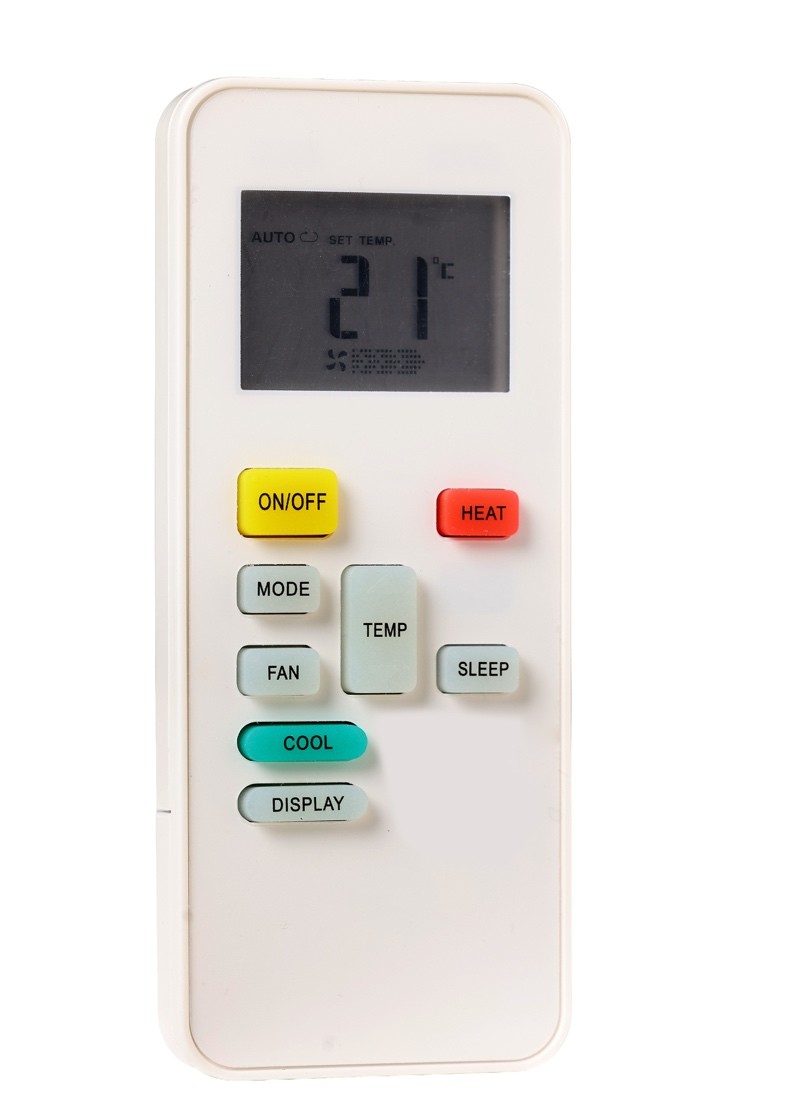
Please note: The remote control only works when held close to the radiator, so that not all radiators are controlled at the same time.
Features:
On/Off → Turn radiator on/off
Heat → Heat
Cool → Cool
Mode → Switch between modes
Fan → Fan speed
Display → Turn display on/off
Temp ▲ / ▼ → Adjust temperature
Sleep → Sleep mode
The remote control has limited functionality. For full control, use the display or the app.
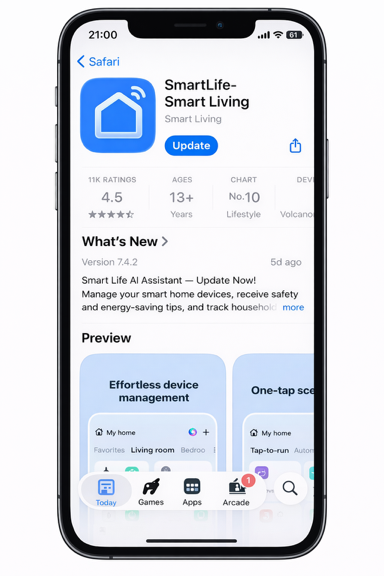
Full control over your radiators via your smartphone.
Install the app from the App Store or Google Play
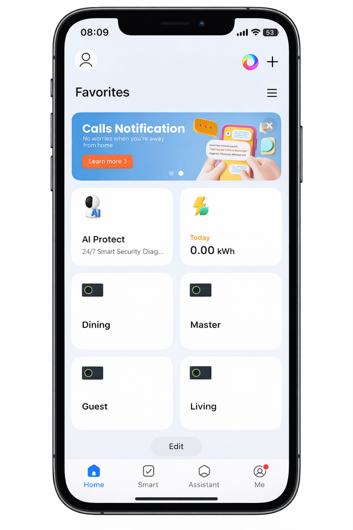
Rooms, Energy consumption
( Home, Smart, Assistant, Me )
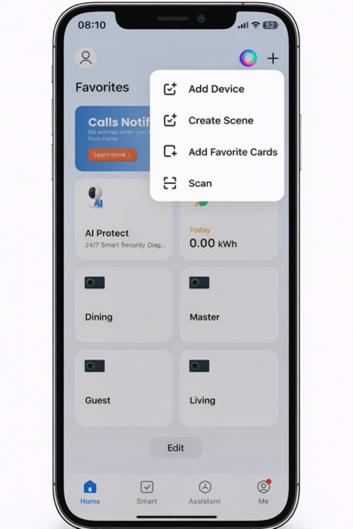
Click the + icon in the top-right corner, then select Add Device
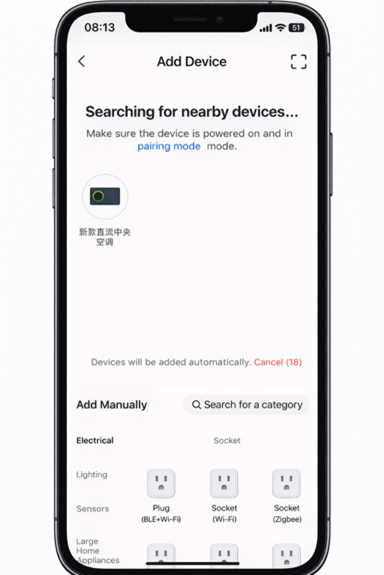
Zorg dat de radiator aan staat, Zet deze in pairing mode, De app vindt het apparaat automatisch
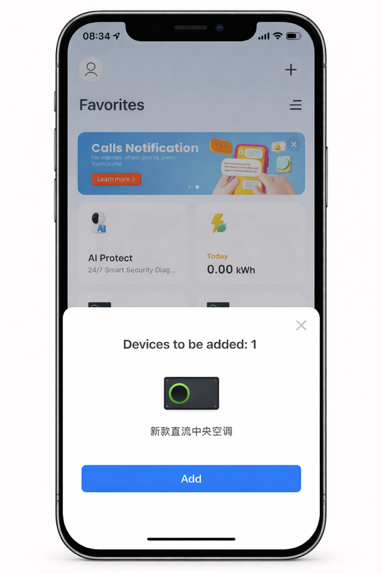
Click Add
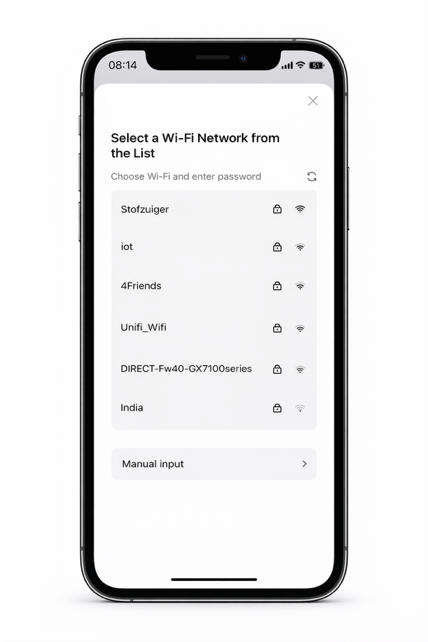
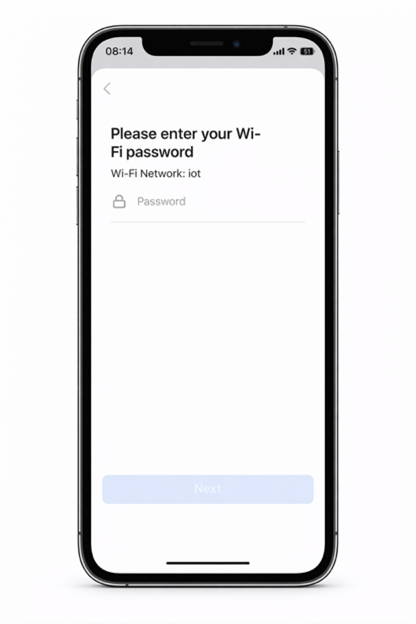
Select your network, enter your password, click Next
Important: 2.4 GHz Wi-Fi only; preferably use a separate IoT network
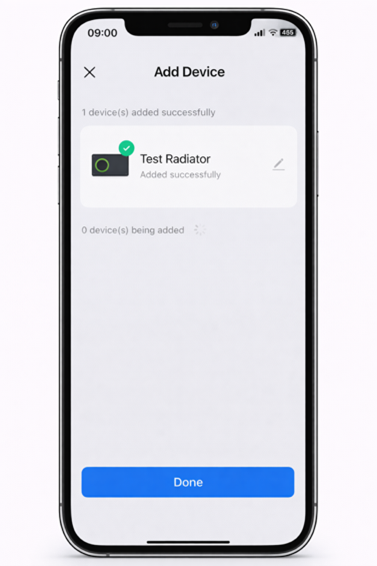
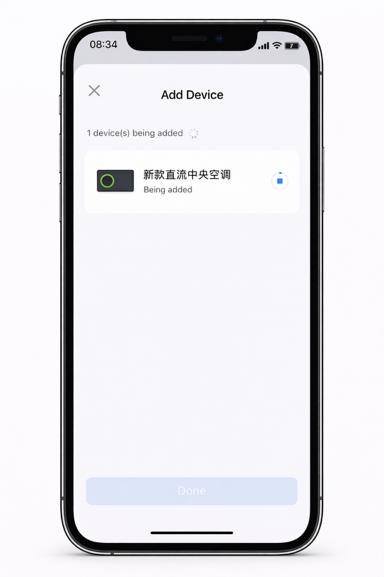
Wait until the installation is complete, then click Done
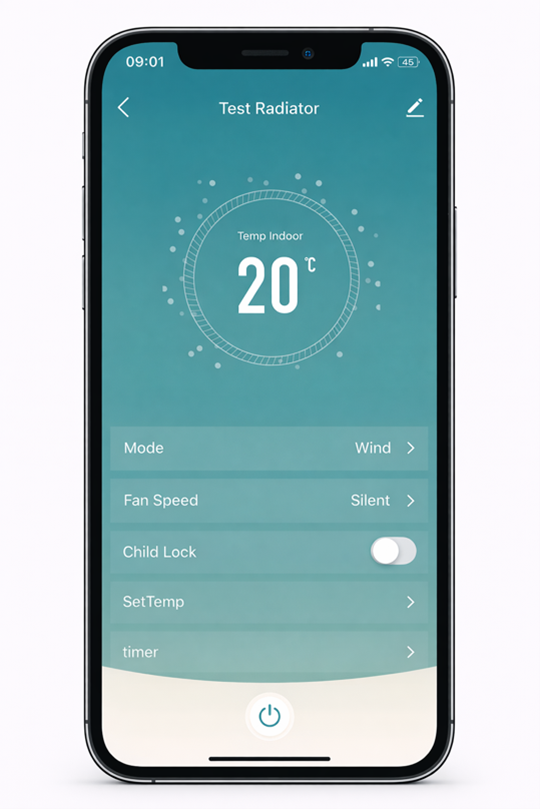
You’ll see: Current temperature (e.g., 20°C), Options (Mode, Fan Speed, Child Lock, SetTemp, Timer), At the bottom: On/Off button
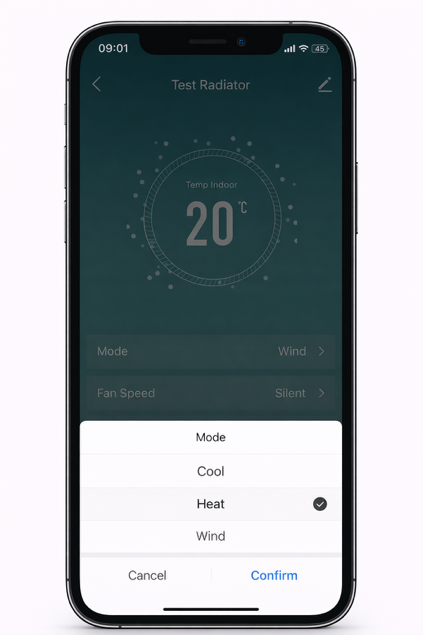
Click on Mode, select: (Heat: heat, Cool: cool, Wind: fan), click Confirm
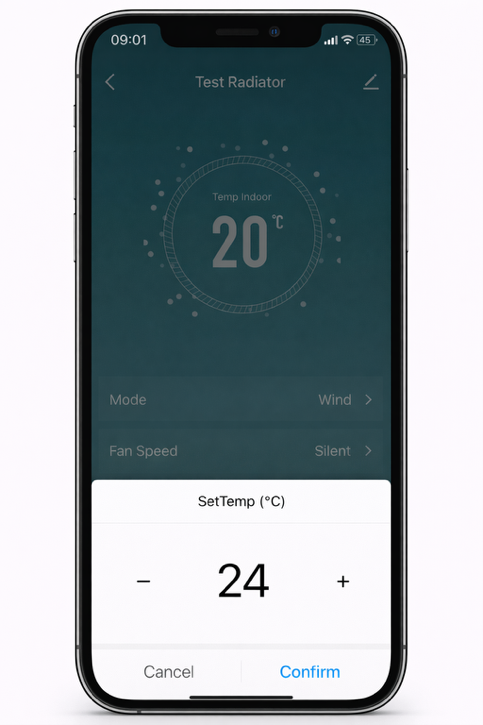
Click SetTemp, set the temperature (e.g., 24°C), then click Confirm
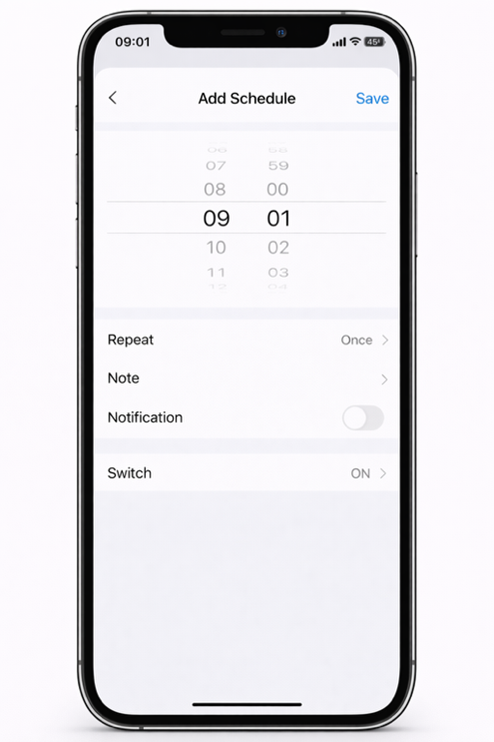
You can set the following: Click “Timer”, click “Add”, Time (e.g., 09:01), Repeat: daily or once, Switch: ON/OFF, Notification: optionall
Yesncer radiators use open standards and are compatible with, among others:
Amazon Alexa
Google Home
Home Assistant
Home Assistant Green
Lorem ipsum dolor sit amet, consectetur adipiscing elit. Ut elit tellus, luctus nec ullamcorper mattis, pulvinar dapibus leo.
Lorem ipsum dolor sit amet, consectetur adipiscing elit. Ut elit tellus, luctus nec ullamcorper mattis, pulvinar dapibus leo.
Lorem ipsum dolor sit amet, consectetur adipiscing elit. Ut elit tellus, luctus nec ullamcorper mattis, pulvinar dapibus leo.
Lorem ipsum dolor sit amet, consectetur adipiscing elit. Ut elit tellus, luctus nec ullamcorper mattis, pulvinar dapibus leo.
Lorem ipsum dolor sit amet, consectetur adipiscing elit. Ut elit tellus, luctus nec ullamcorper mattis, pulvinar dapibus leo.


